
Timetable and teaching reports
The Director of Studies, on a computer · 14 steps. Filmed at Maryhill High School, where the pilot runs; the names of staff and students are made up.
That is the Dashboard.
Try it with your own school: the free trial needs nothing installed.
Start a free trialBook a demonstration on WhatsApp
Or call +256 753 404 044
All 14 steps on one page
Step 1 of 14
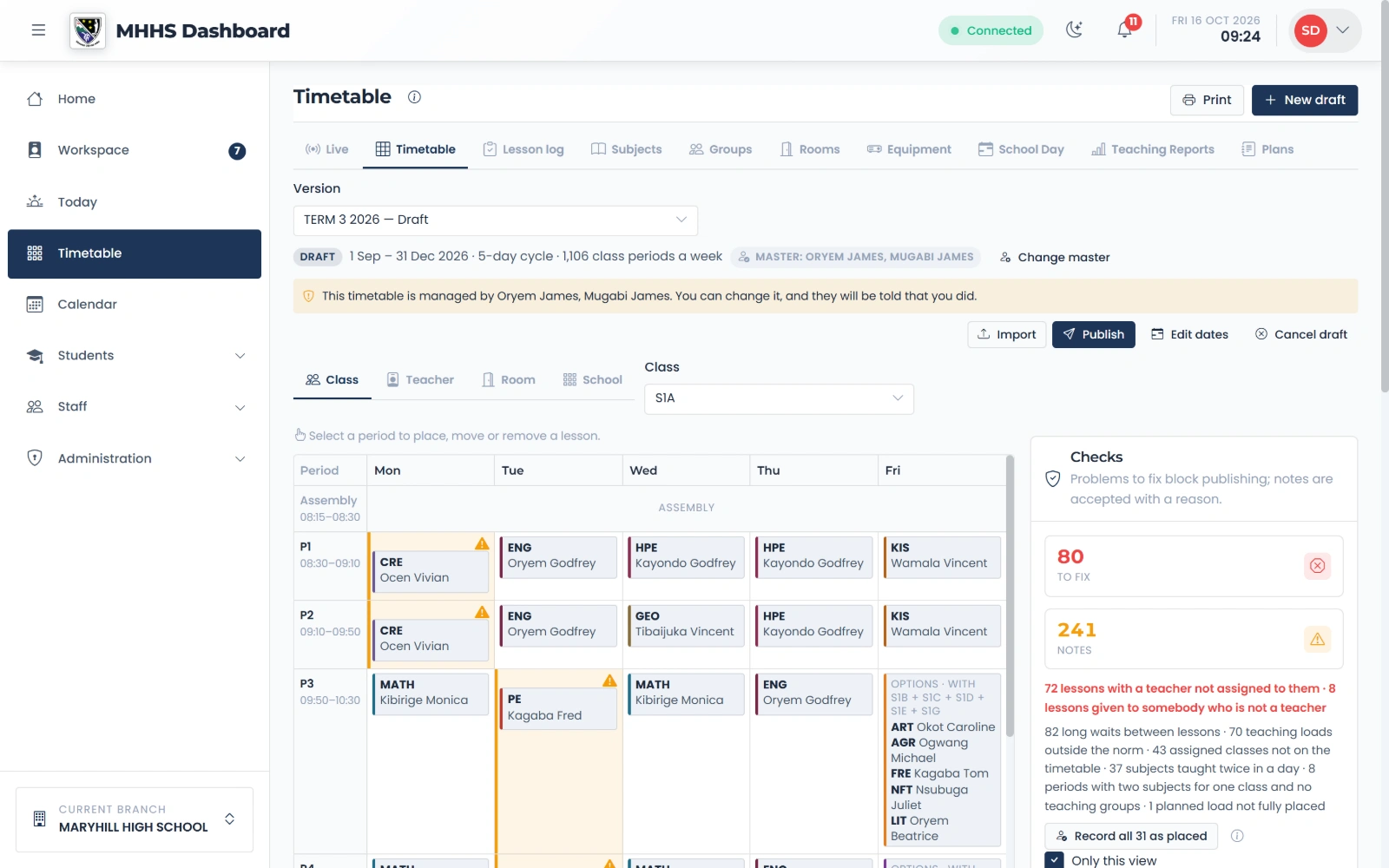
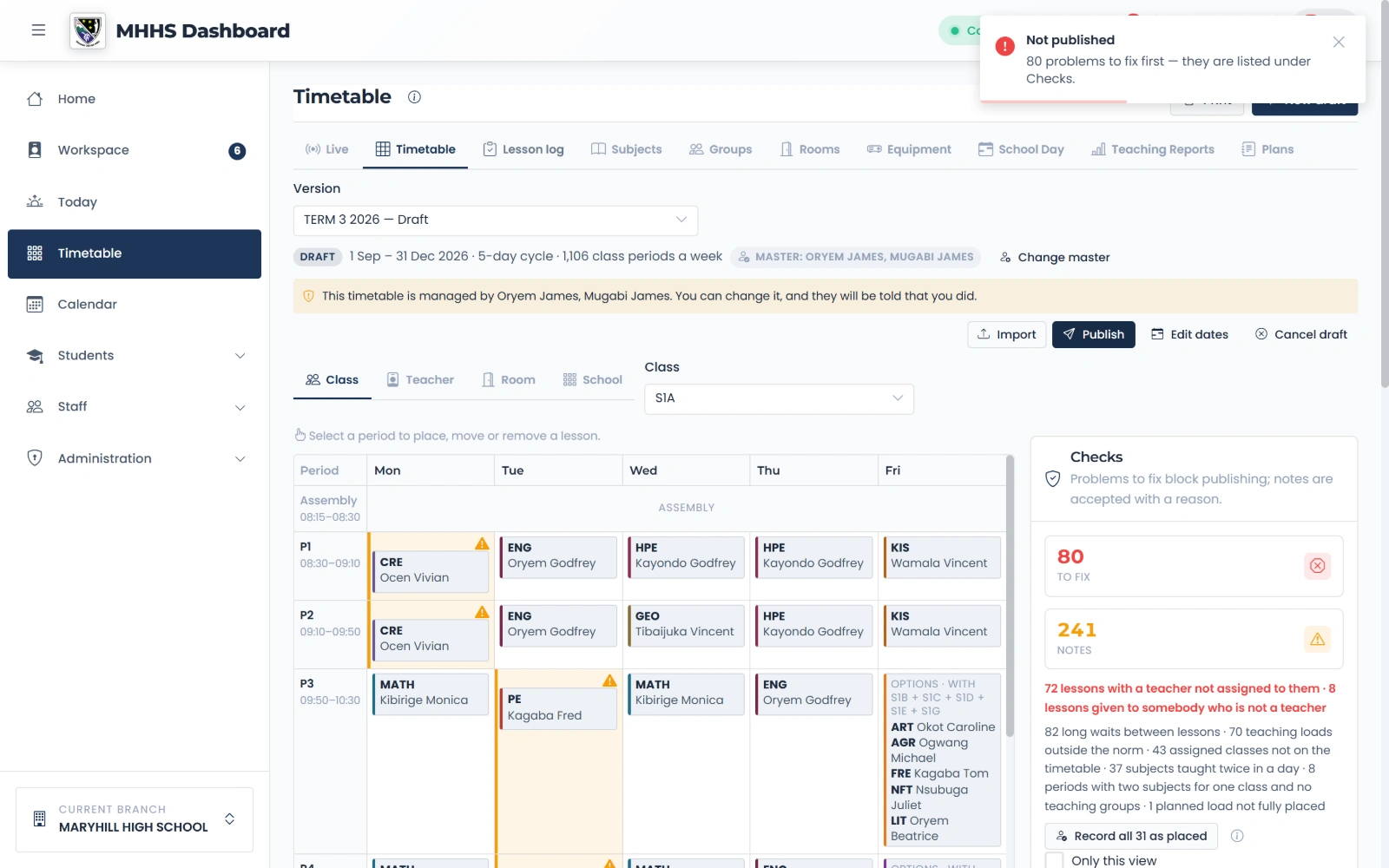
This term’s timetable
This term’s timetable: a draft until it is published.
qmgr.cashbook.ug/admin/timetable
Step 2 of 14
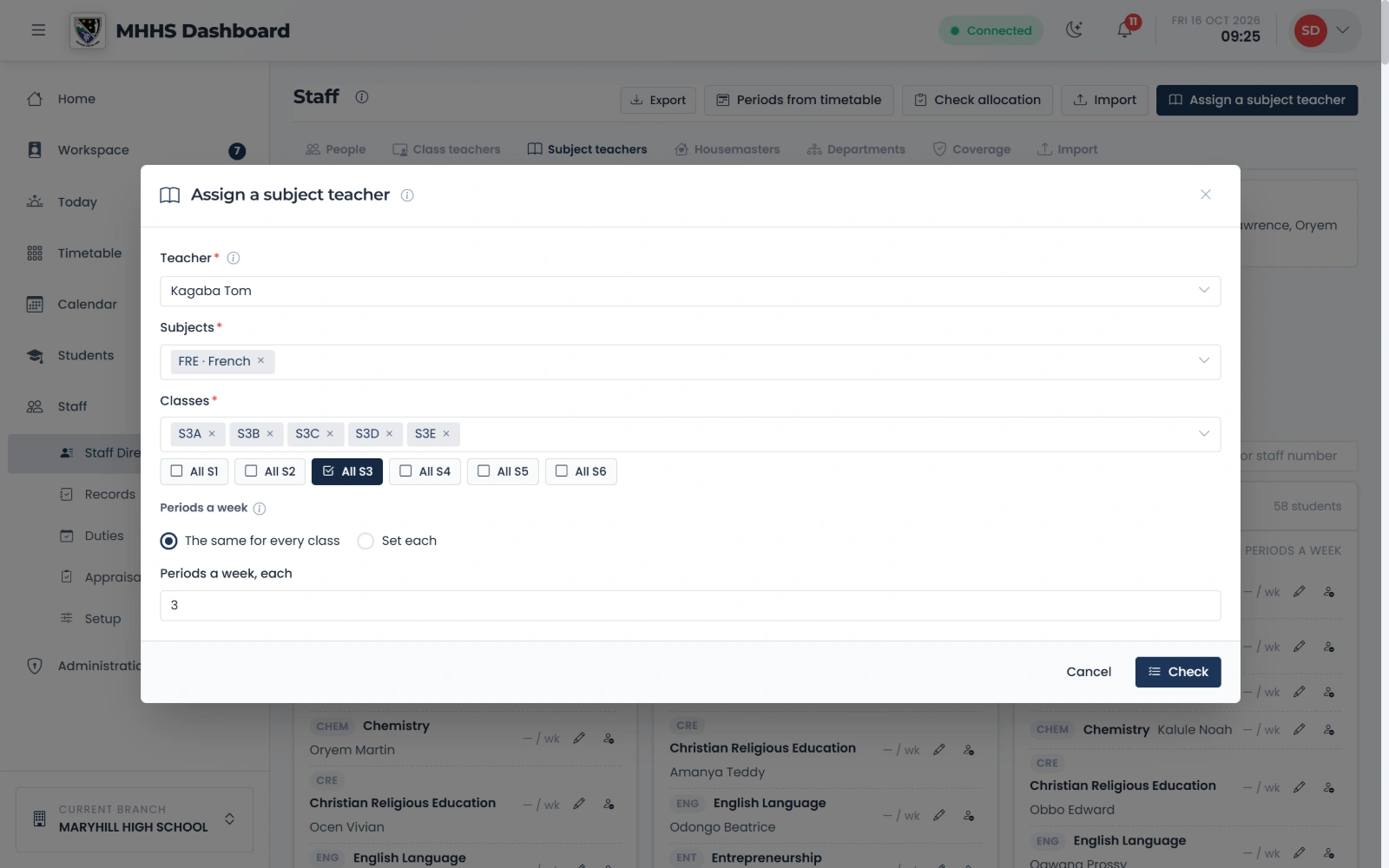
Who teaches what
One teacher, the subjects, and a whole form at once: All S3 covers every stream.
qmgr.cashbook.ug/admin/staff?tab=subject-teachers
Step 3 of 14
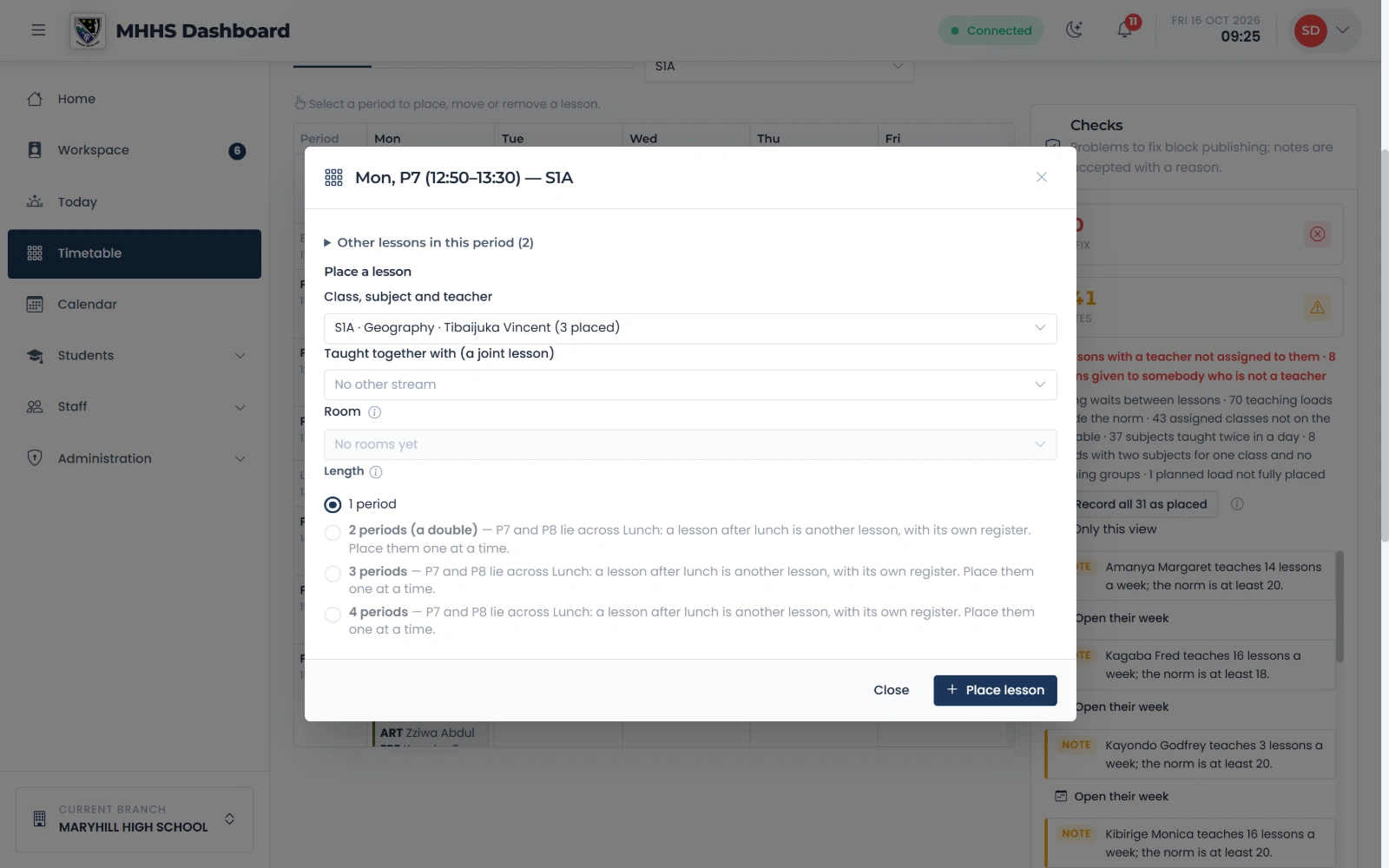
Place a lesson
Choose the class’s subject and teacher, and its length: one period or a double.
qmgr.cashbook.ug/admin/timetable
Step 4 of 14
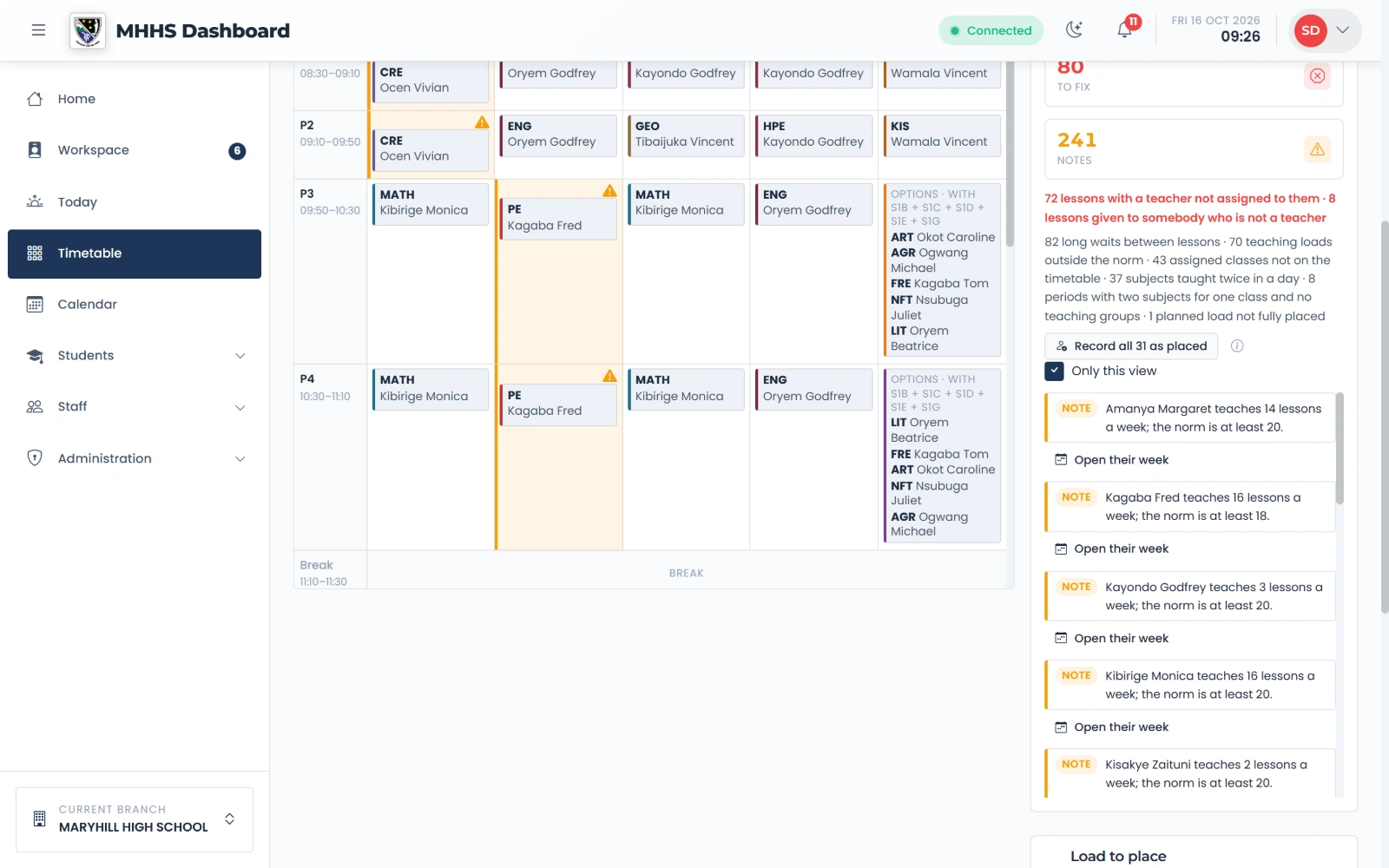
Checks that fix what they find
Every finding carries its fix: record the assignment, give the lesson to the right teacher, or place a missing period.
qmgr.cashbook.ug/admin/timetable
Step 5 of 14
Publish
Publish refuses while anything is left to fix, and says where it is listed.
qmgr.cashbook.ug/admin/timetable
Step 6 of 14
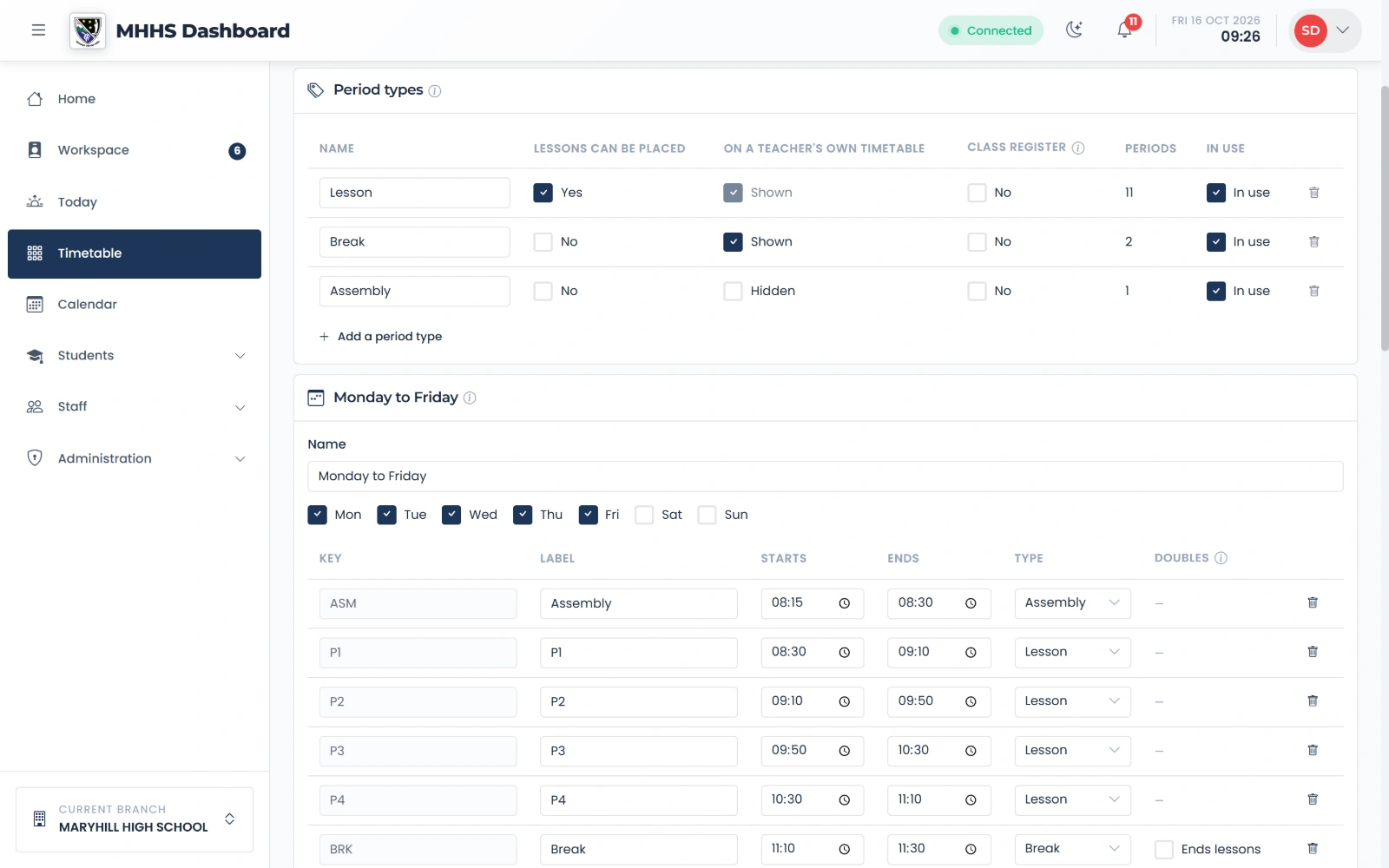
The school day
Period types say what each kind of period does: whether lessons go in it, and whether it shows on a teacher’s own timetable.
qmgr.cashbook.ug/admin/timetable?tab=schoolday
Step 7 of 14
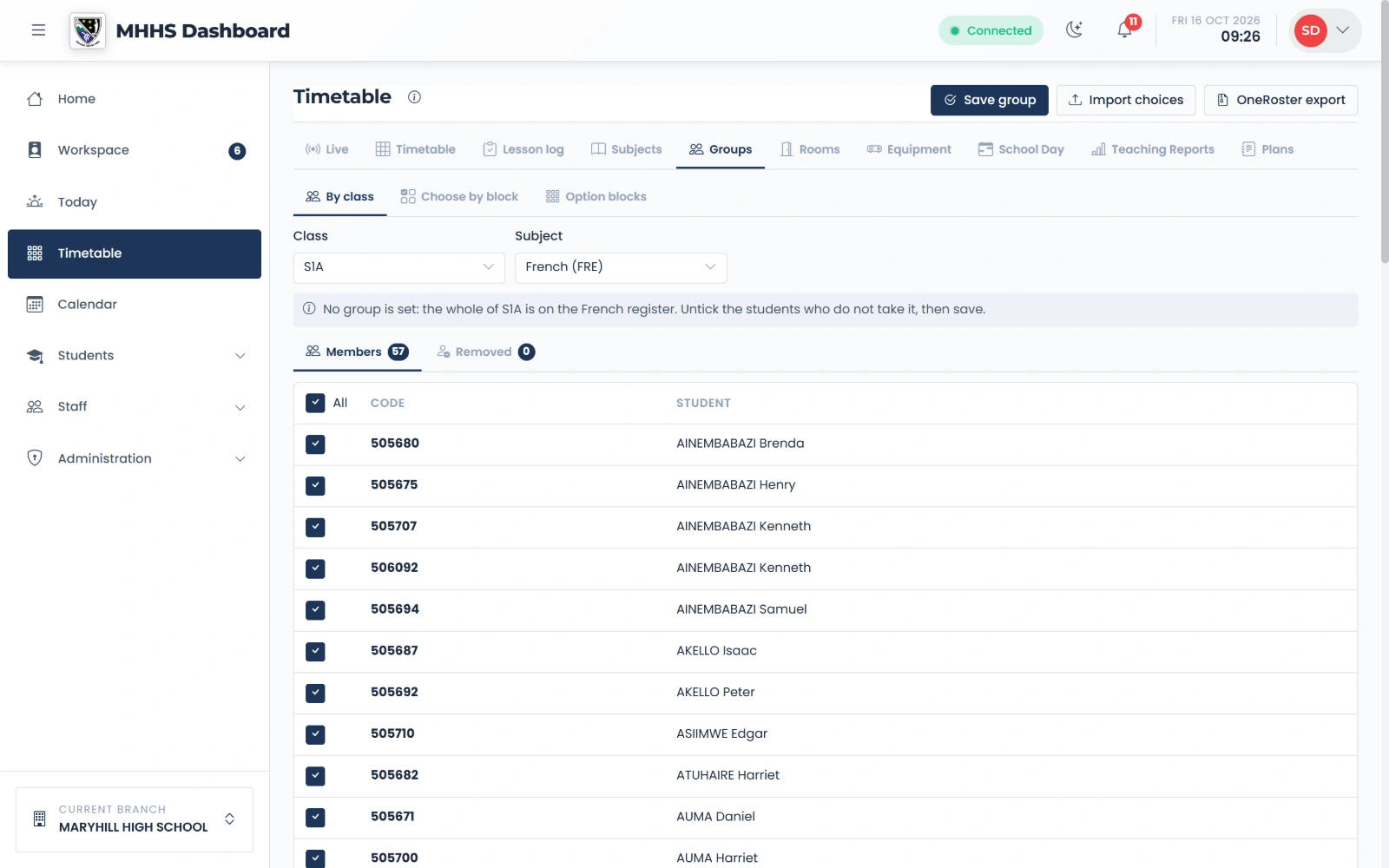
Elective groups
Tick the students of each class who take an elective: its registers then list only them.
qmgr.cashbook.ug/admin/timetable?tab=groups
Step 8 of 14
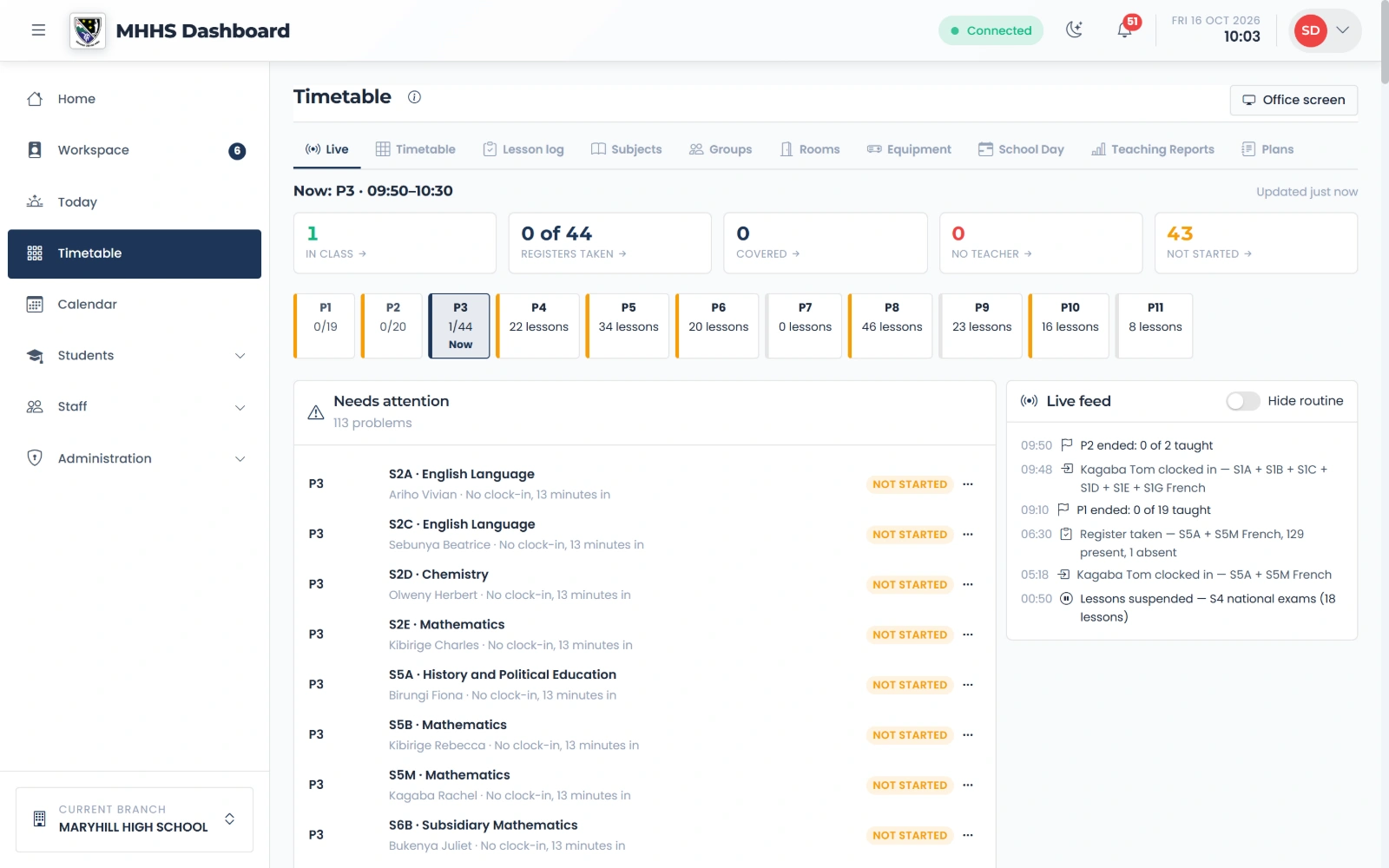
Live lessons
Who is in class this period, which registers are taken, and which lessons have not started.
qmgr.cashbook.ug/admin/timetable?tab=live
Step 9 of 14
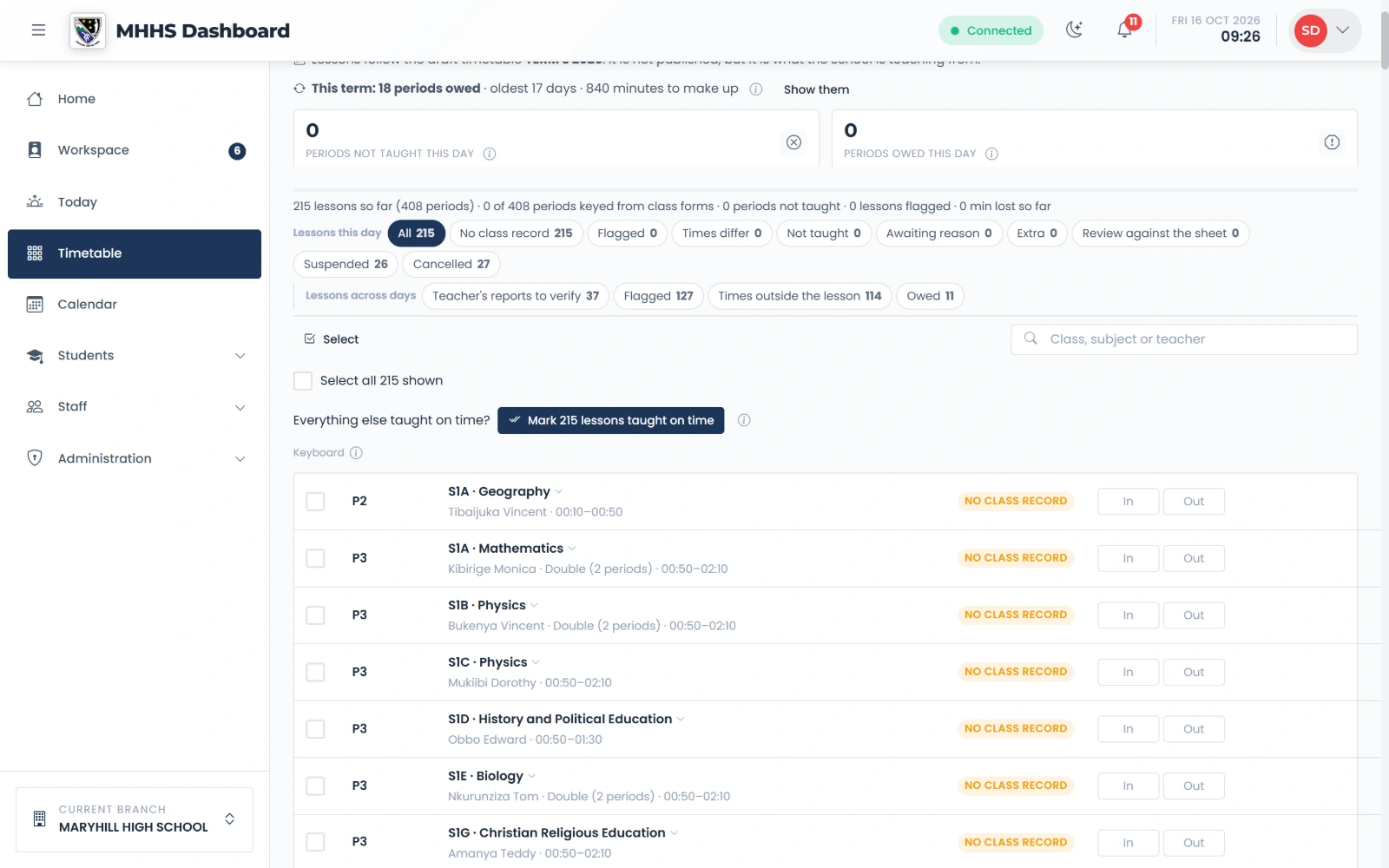
The Lesson log
Type the times in and out from the class’s record, or use the menu: taught, not taught with a reason, or taught by someone else.
qmgr.cashbook.ug/admin/timetable?tab=log
Step 10 of 14
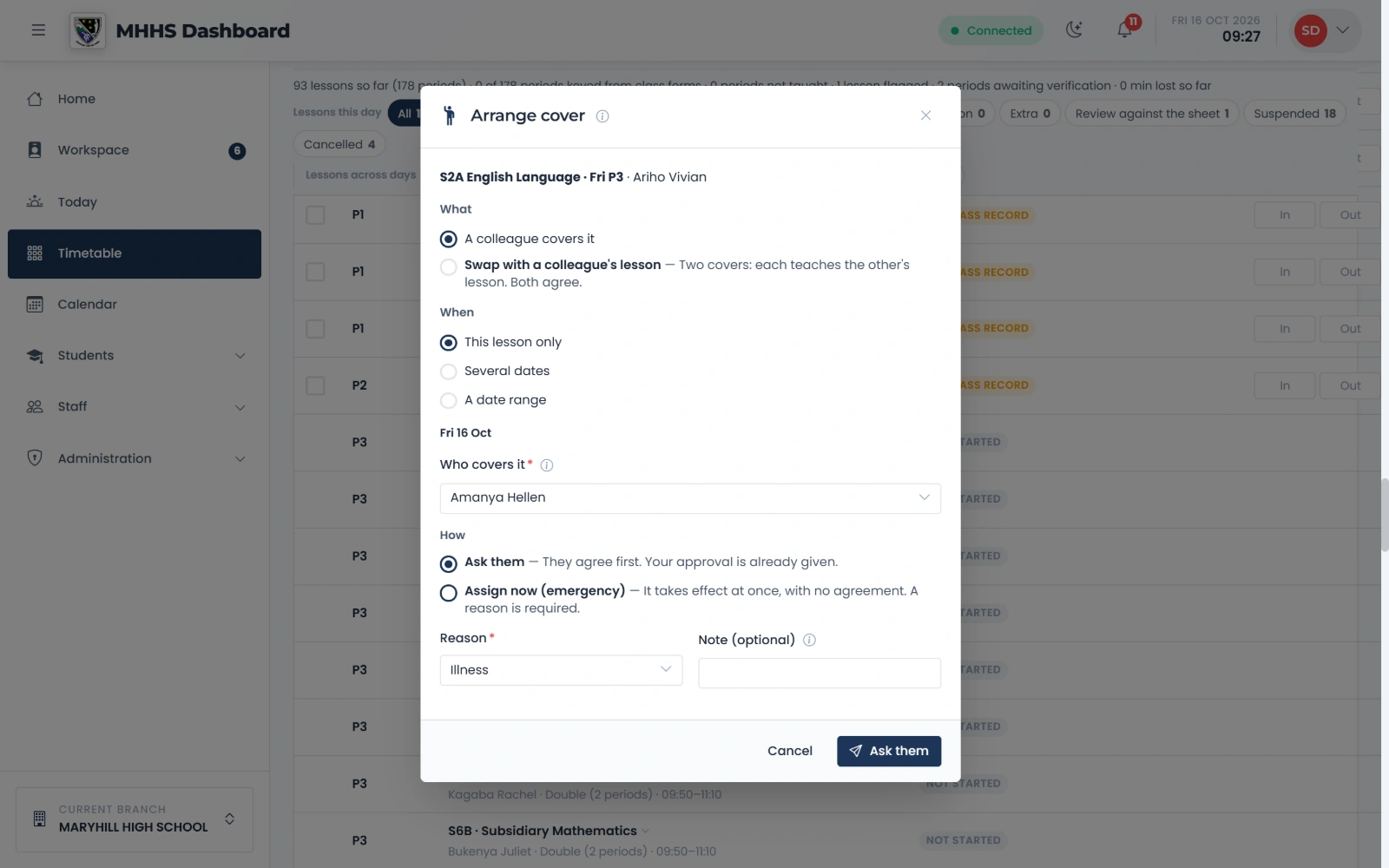
Cover for an absent teacher
Choose a colleague and a reason; a clash with their own lessons is shown before you send.
qmgr.cashbook.ug/admin/timetable?tab=log
Step 11 of 14
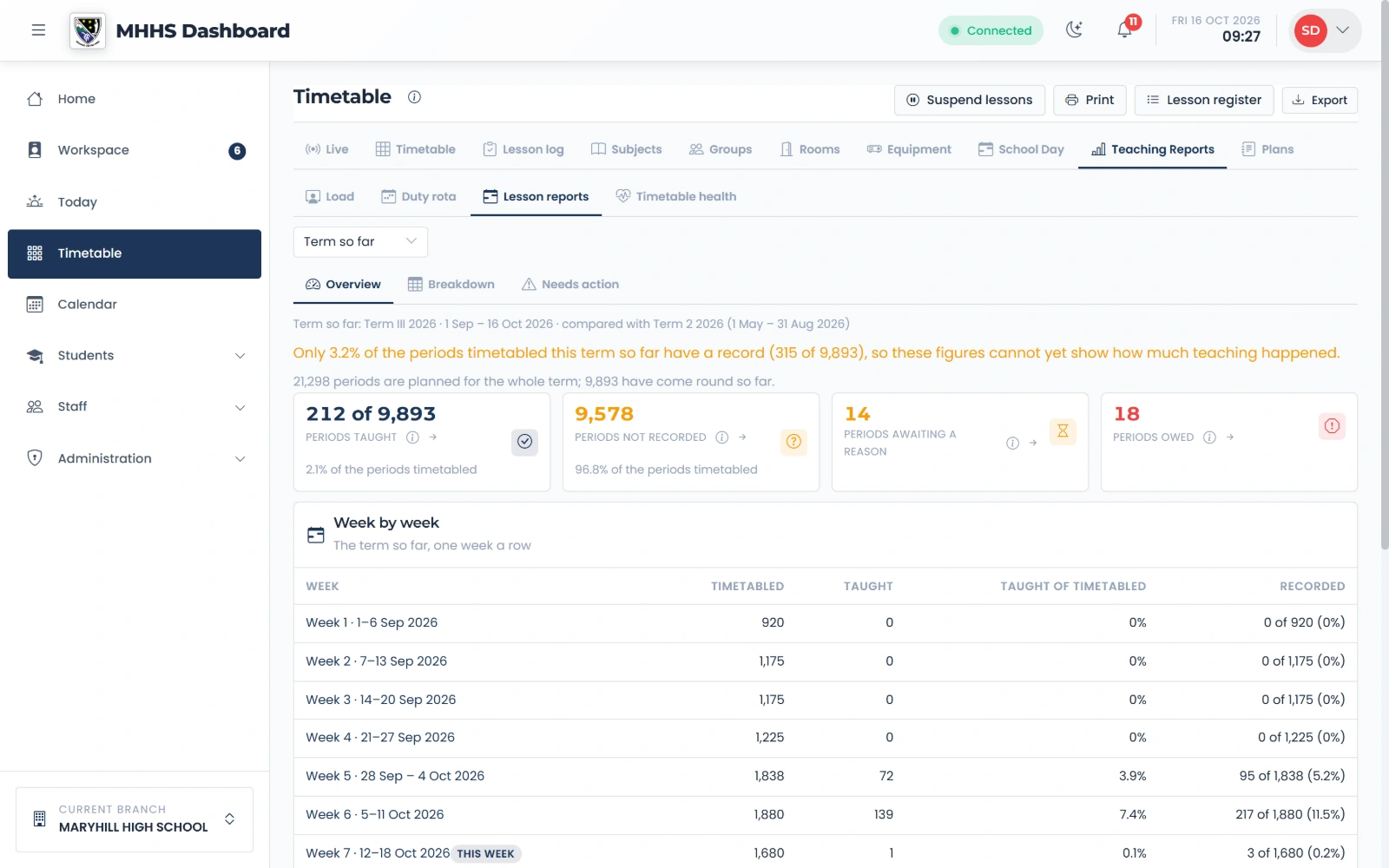
Lesson reports
First it says how complete the records are.
qmgr.cashbook.ug/admin/timetable?tab=reports&view=periods
Step 12 of 14
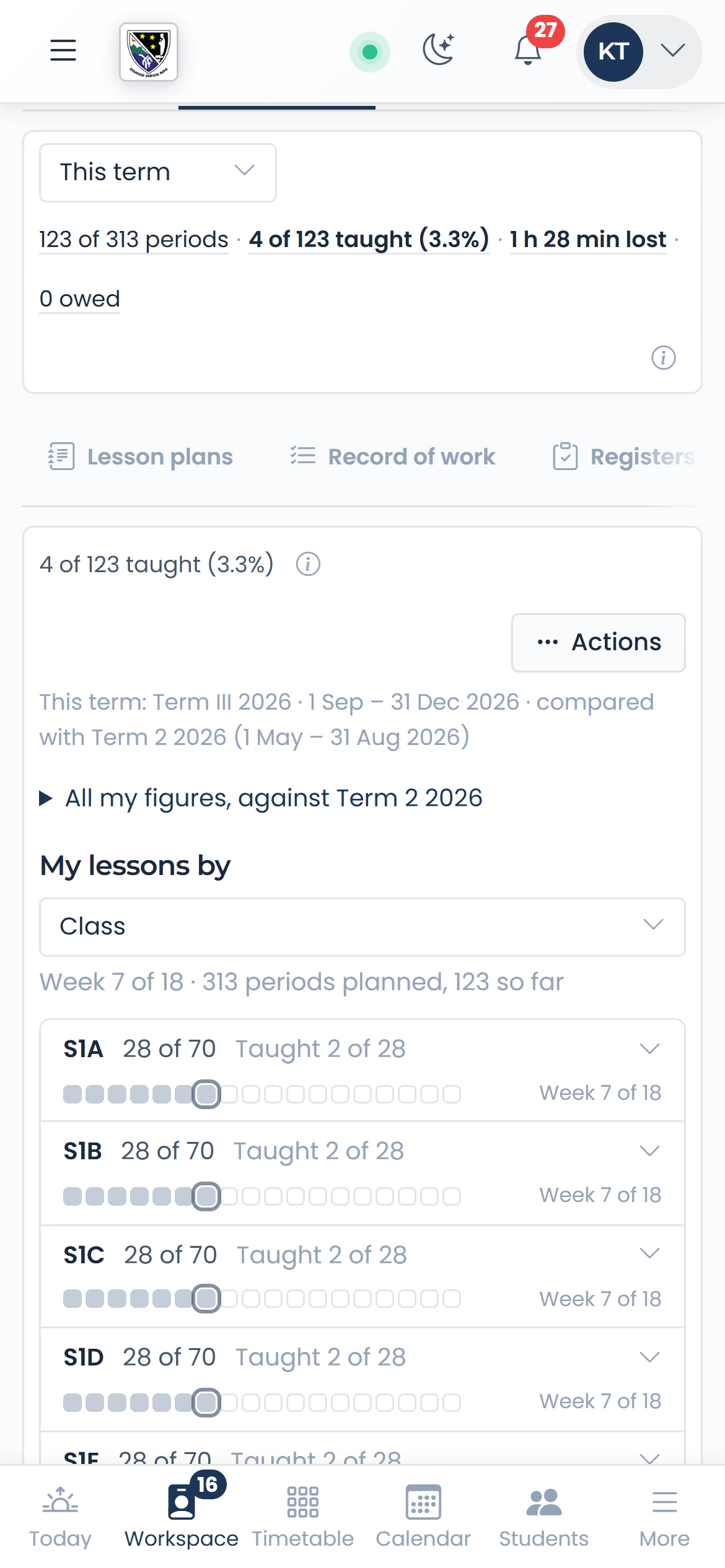
A teacher’s own record
Each teacher sees their own record the same way, on Workspace → Teaching: planned, taught, not recorded and owed, week by week.
qmgr.cashbook.ug/portal?tab=teaching&teach=teaching-record
Step 13 of 14
UNEB’s timetable, imported
Choose the national timetable the platform published, and the classes sitting it.
qmgr.cashbook.ug/admin/staff/duties?tab=exams
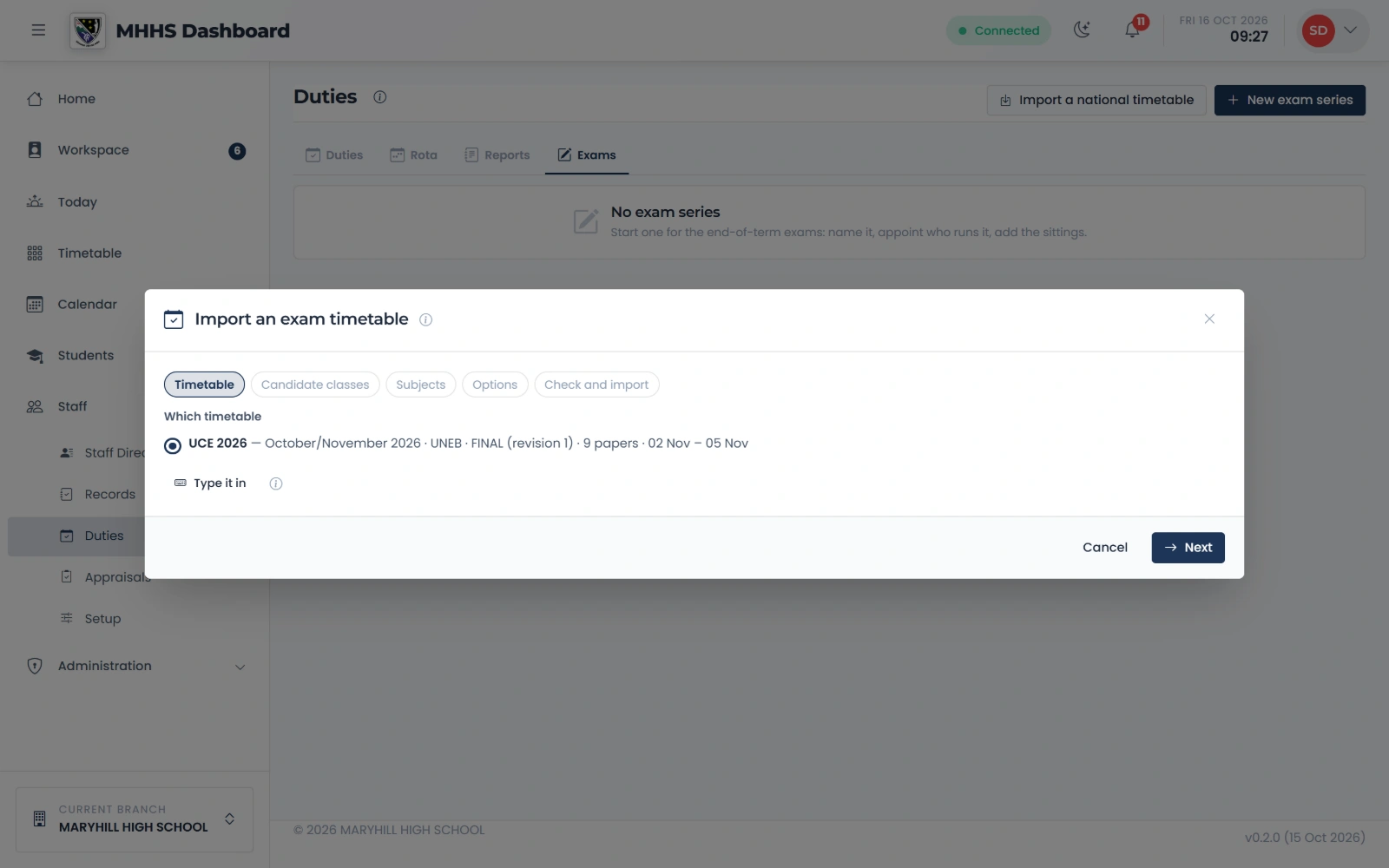
Step 14 of 14
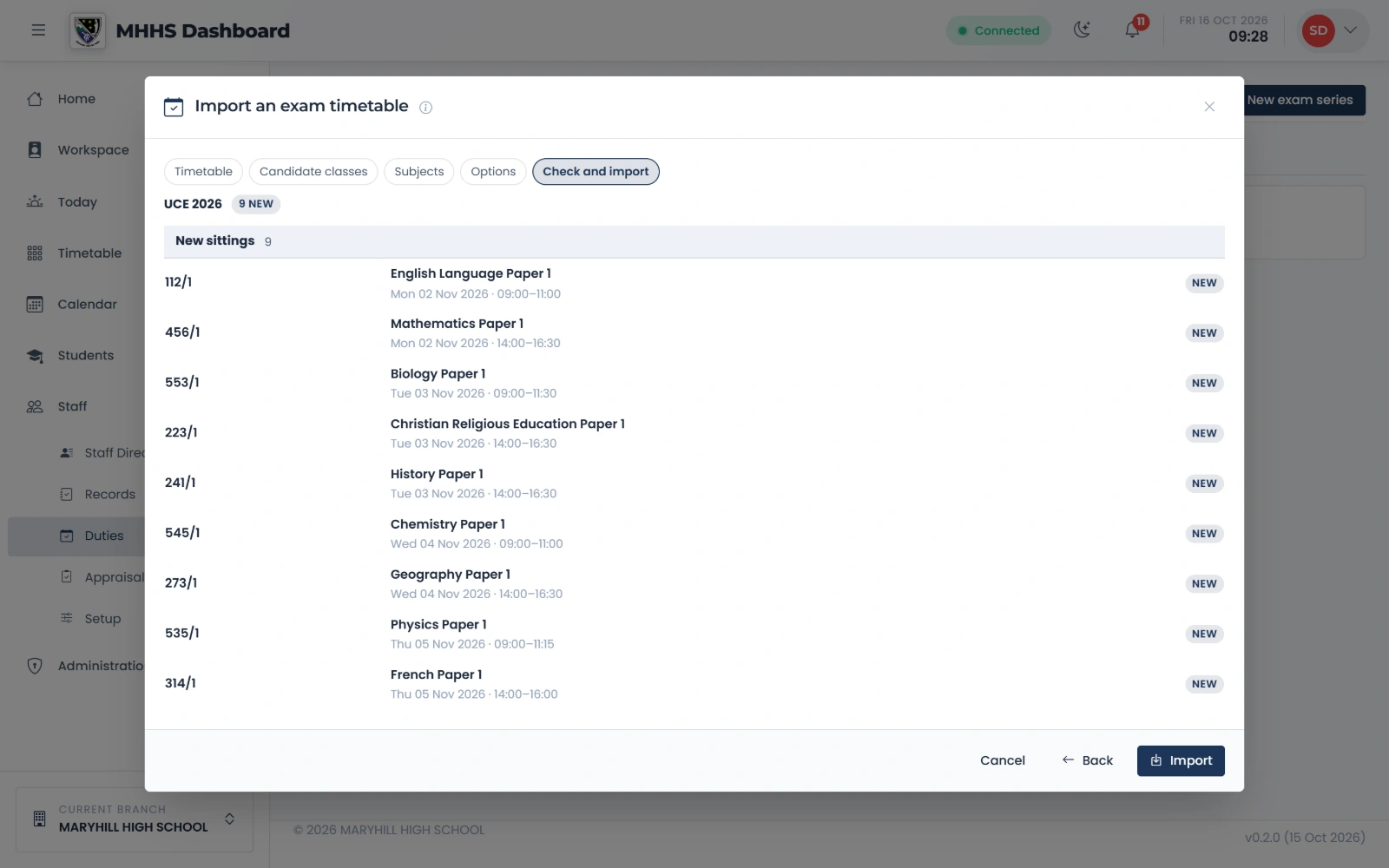
Check, then import
Every sitting it will make, before anything is written.
qmgr.cashbook.ug/admin/staff/duties?tab=exams
See it with your own school
Start a free trialBook a demonstration on WhatsApp
Or call +256 753 404 044