
Teachers: your school day
A class teacher, on a phone · 13 steps. Filmed at Maryhill High School, where the pilot runs; the names of staff and students are made up.
That is the Dashboard.
Try it with your own school: the free trial needs nothing installed.
Start a free trialBook a demonstration on WhatsApp
Or call +256 753 404 044
All 13 steps on one page
Step 1 of 13
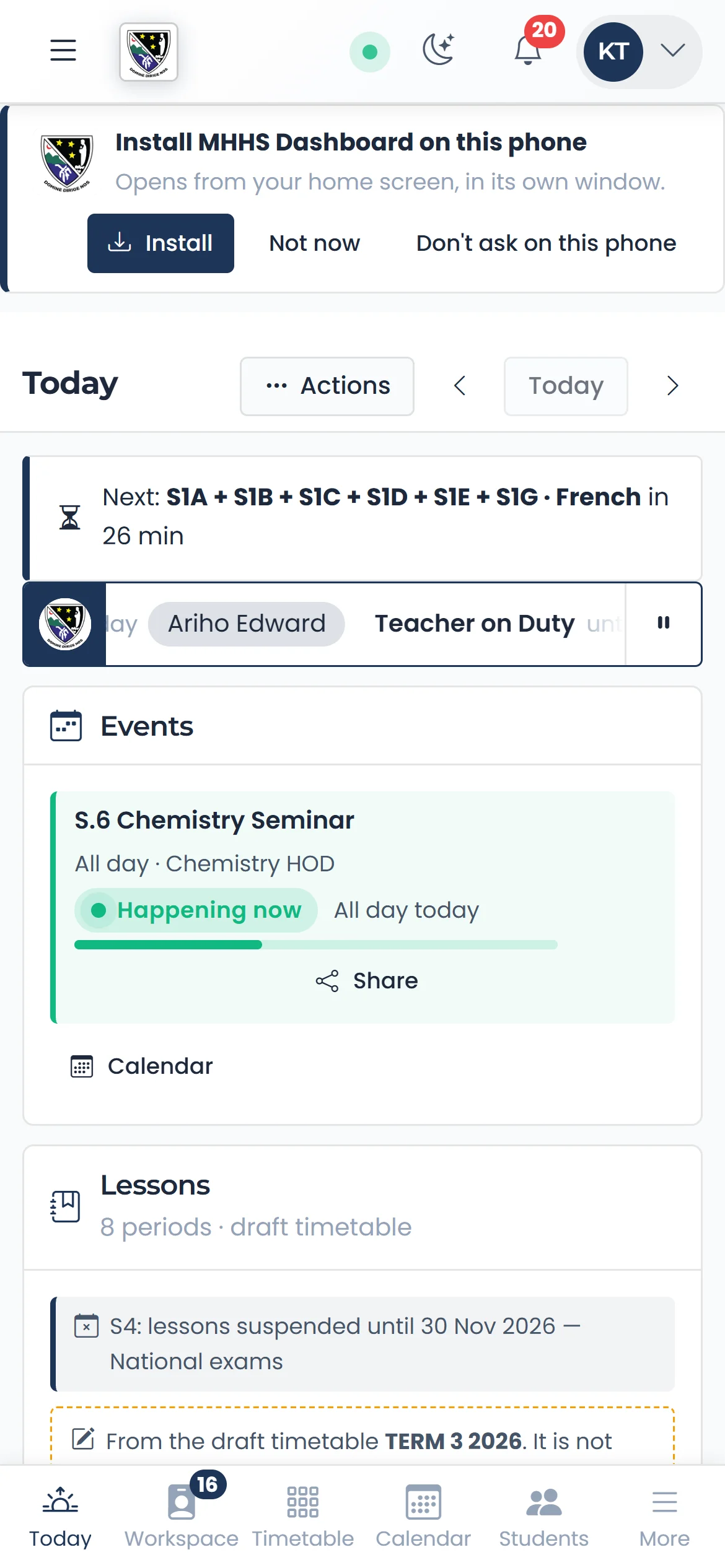
Sign in once, then install it
Install opens the Dashboard from your home screen, in its own window.
qmgr.cashbook.ug/my-day
Step 2 of 13
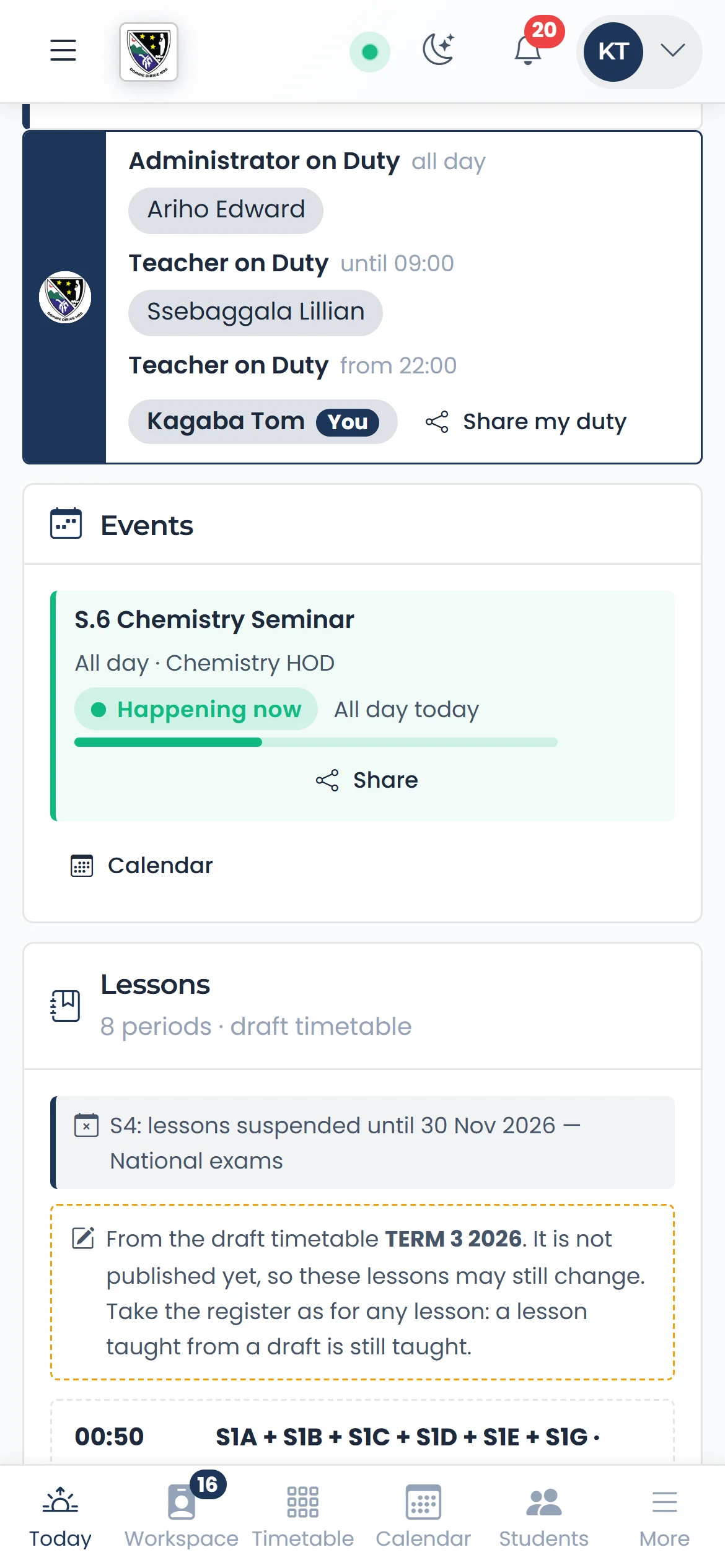
Who is on duty today
The strip in the school’s colours names everyone on duty today.
qmgr.cashbook.ug/my-day
Step 3 of 13
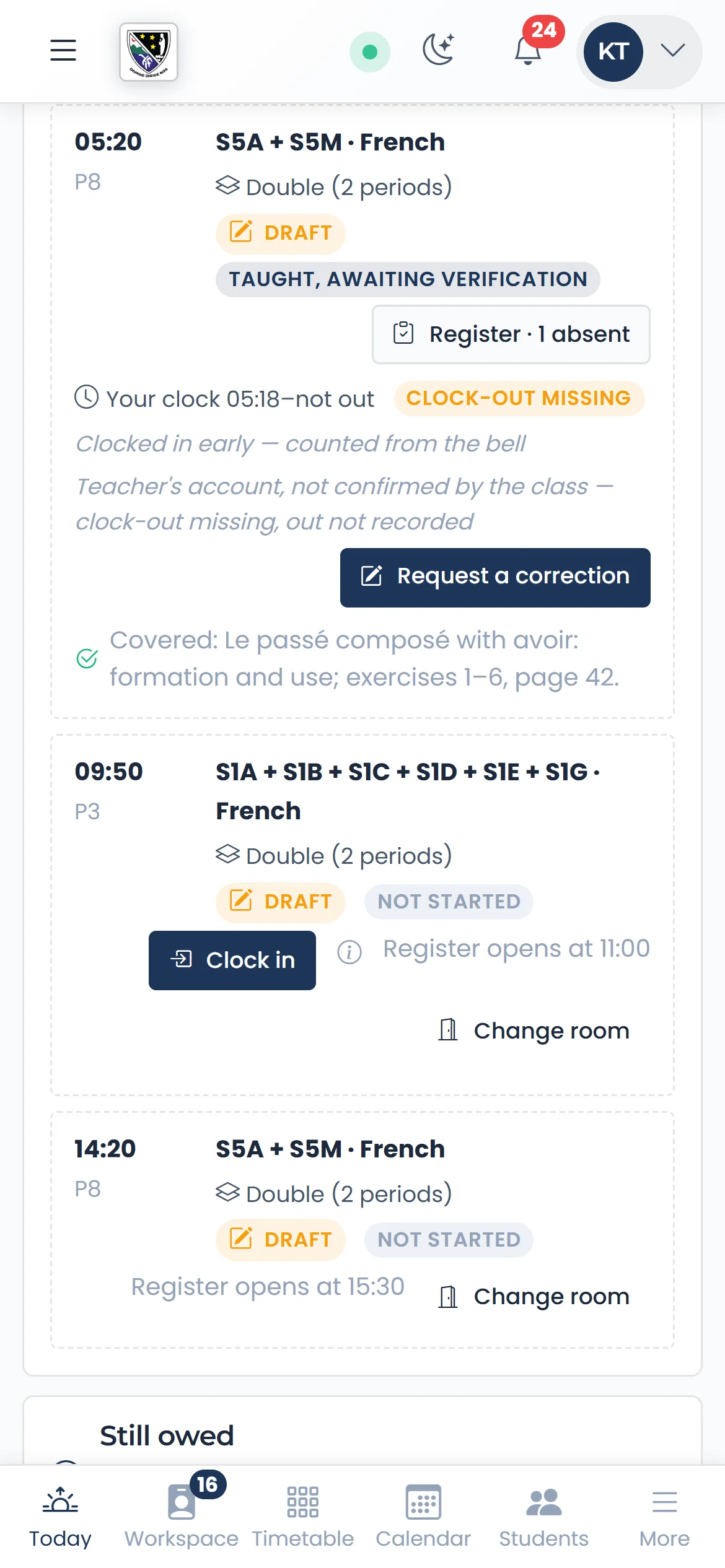
Clock in
When the lesson starts, tap Clock in. The time is taken from the server, once, as your own record of when you started.
qmgr.cashbook.ug/my-day
Step 4 of 13
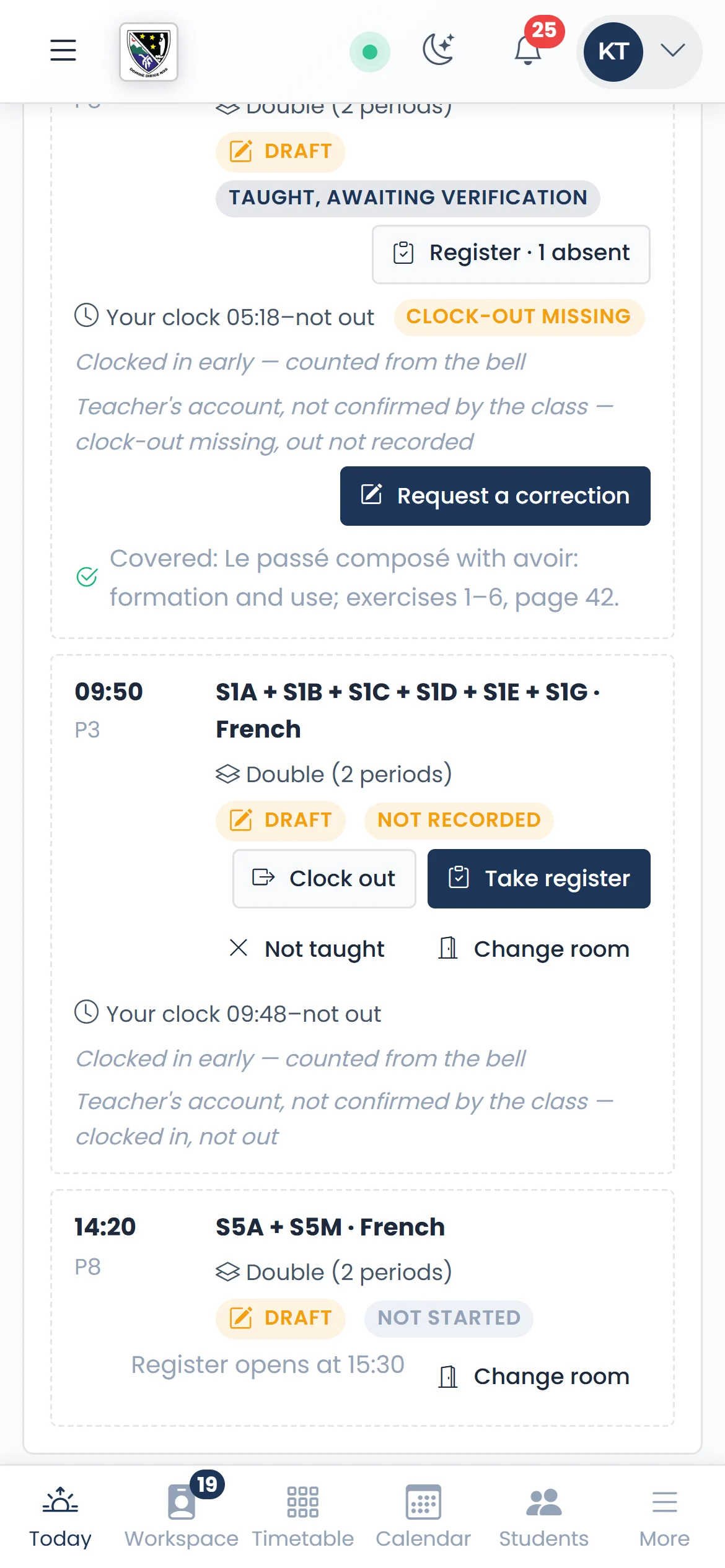
Ten minutes before the end
Take register appears now, beside the lesson.
qmgr.cashbook.ug/my-day
Step 5 of 13
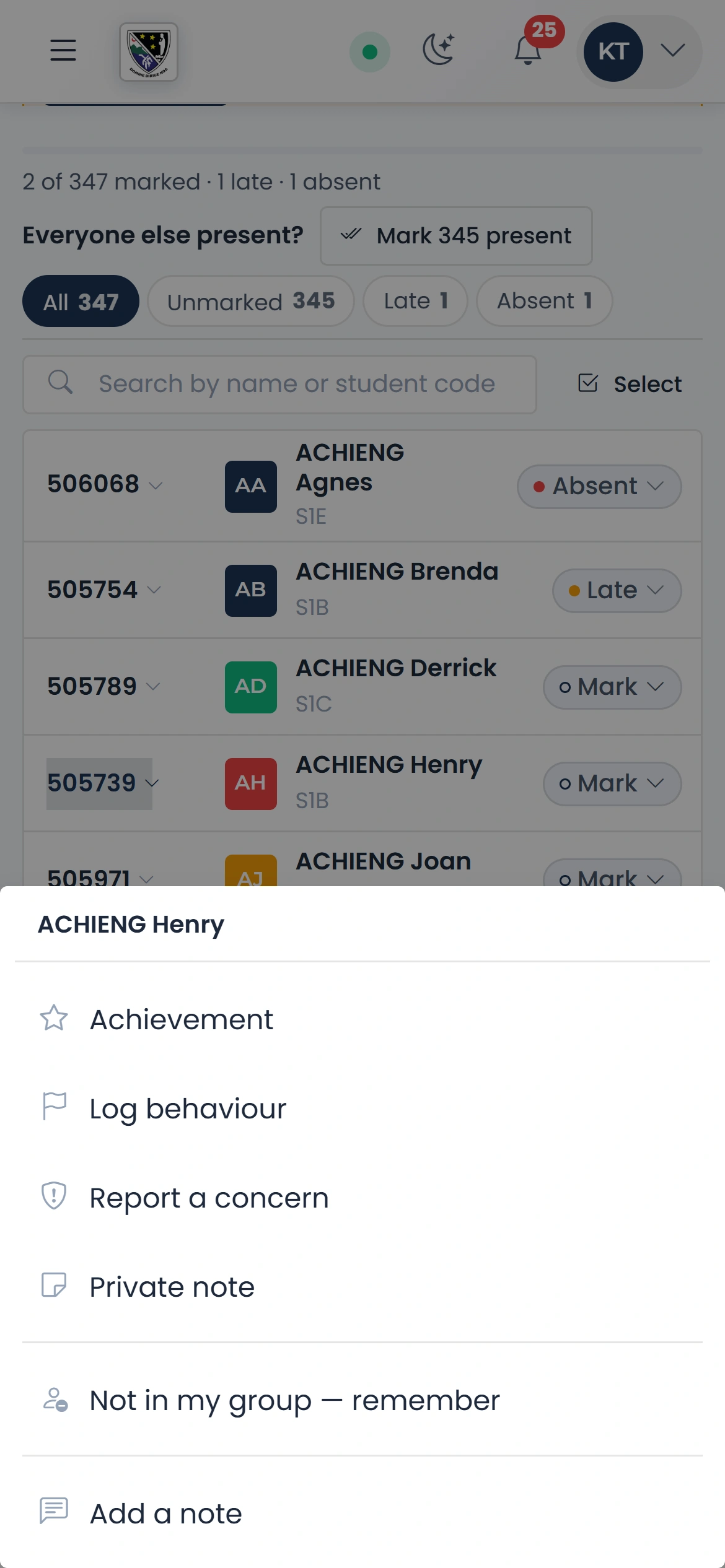
Not in your group
For an elective, take off a student who does not take your subject.
Step 6 of 13
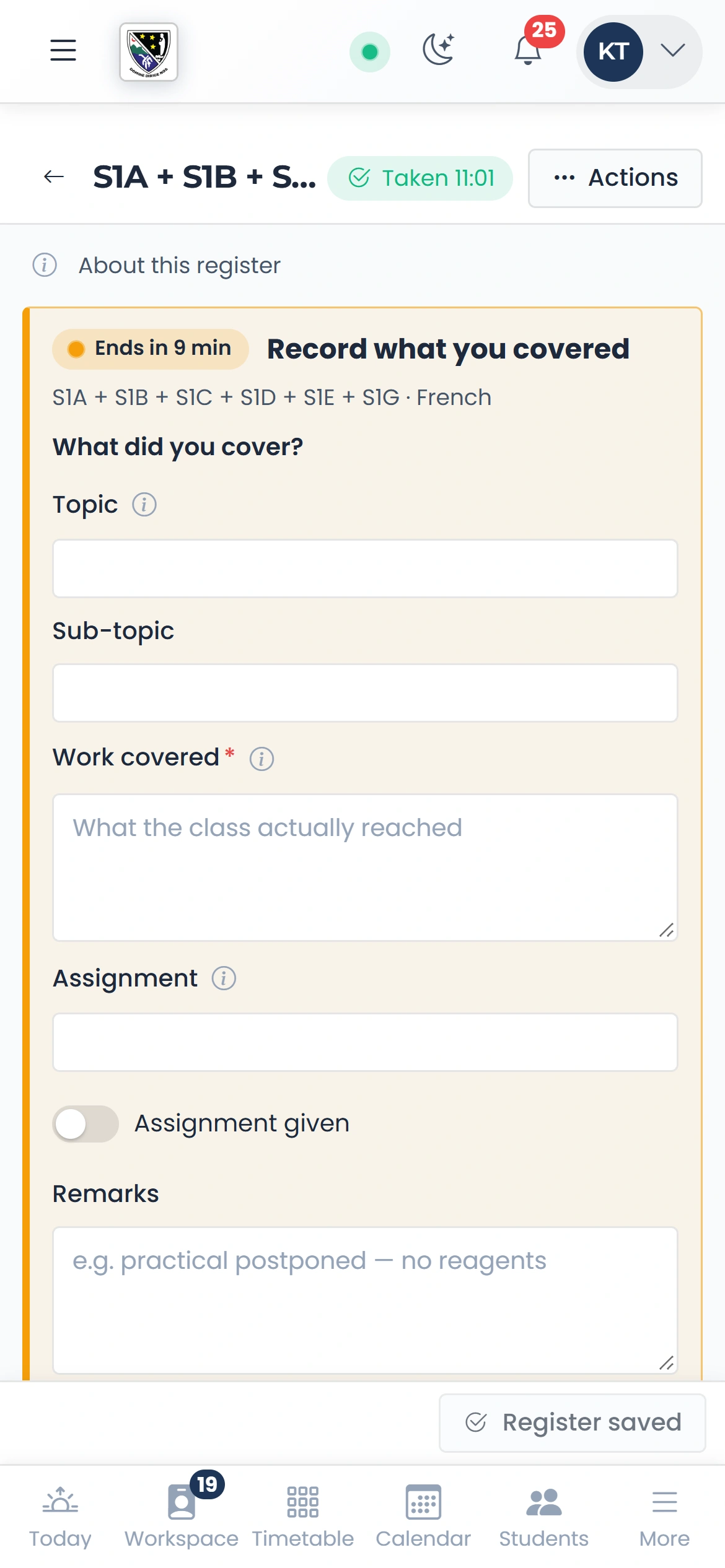
Record what you covered
Straight after the register it asks what you covered.
Step 7 of 13
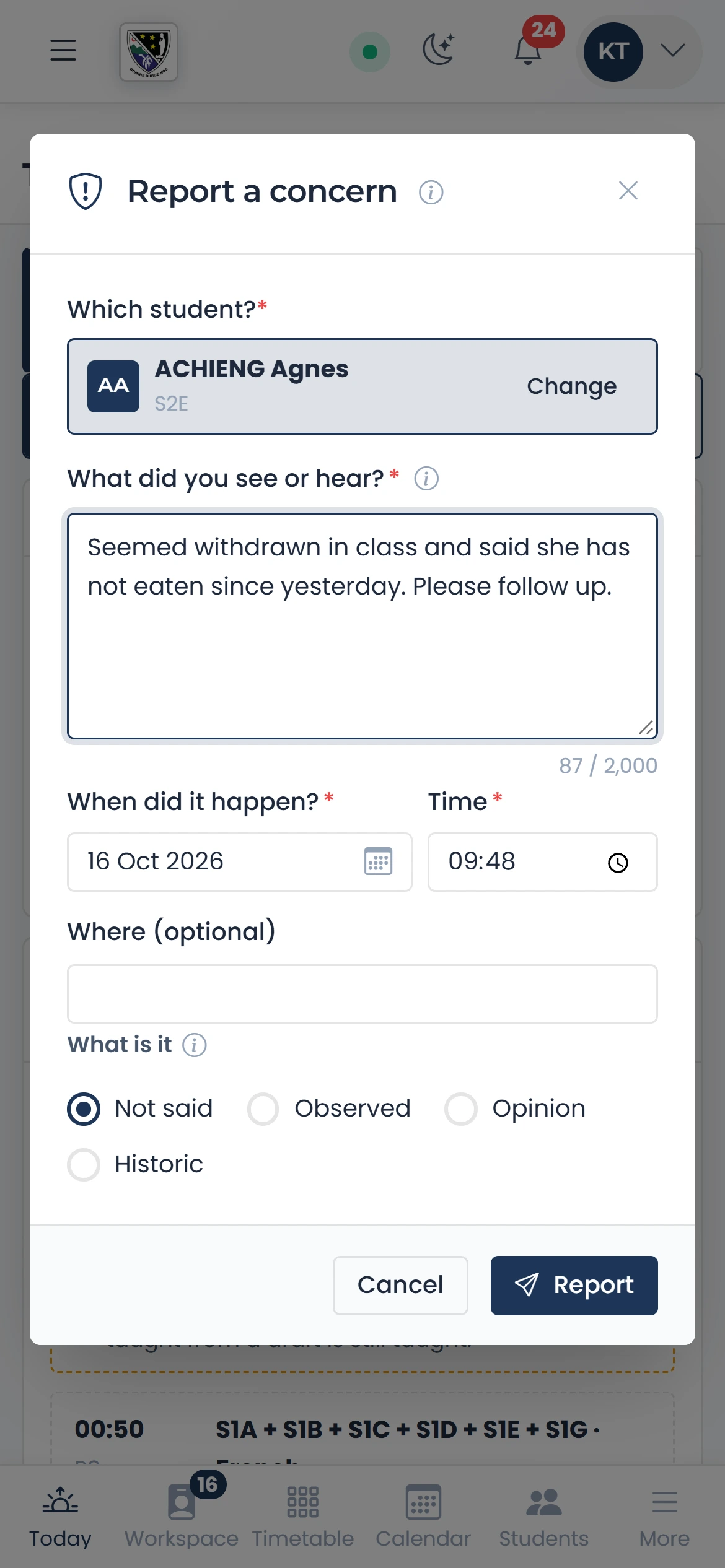
When it happened
Say when it happened: now, or the day and time you noticed it.
qmgr.cashbook.ug/my-day
Step 8 of 13
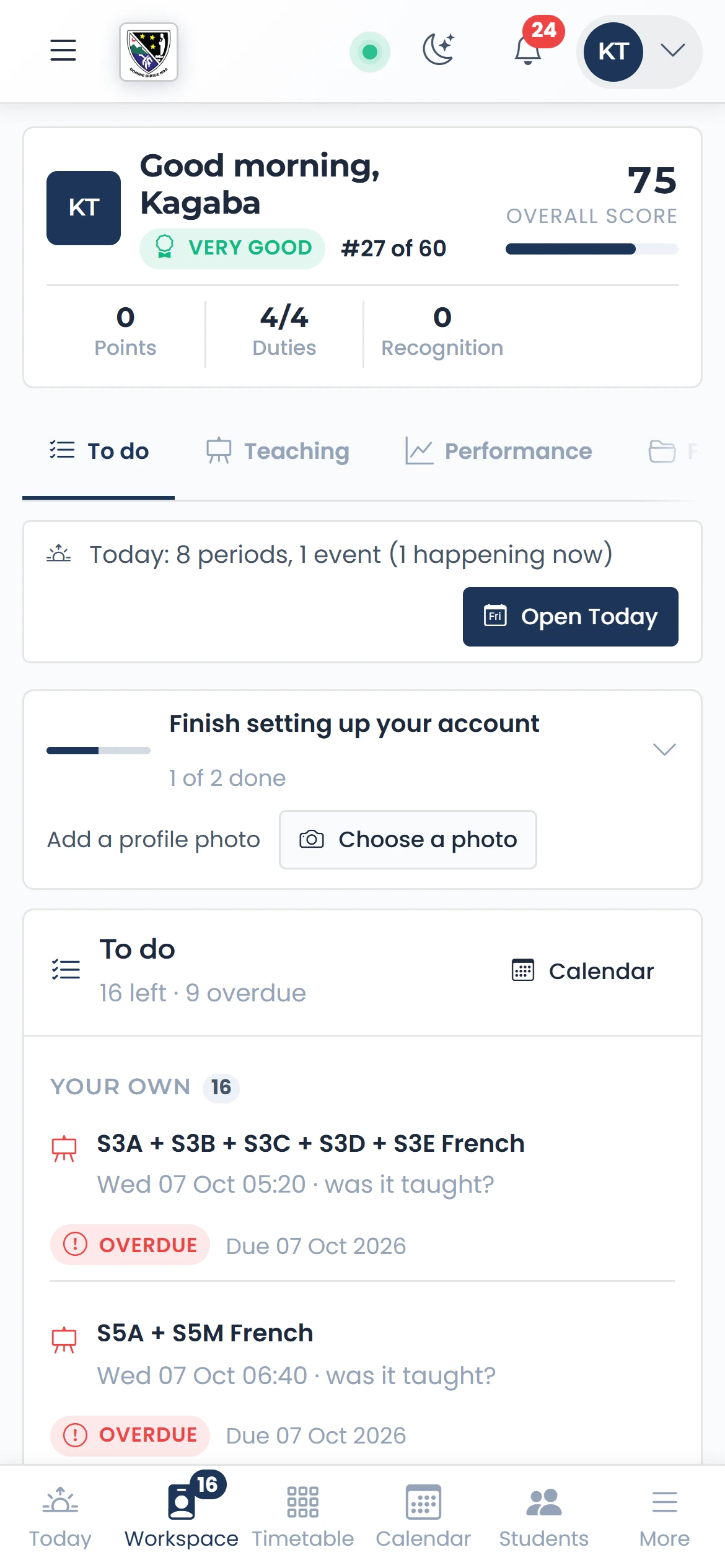
Workspace is yours
Workspace has five tabs: To do lists what waits for you, then Teaching, Performance, your File and the Wall.
qmgr.cashbook.ug/portal
Step 9 of 13
Teaching, in one row
Your lesson plans, record of work, registers, mark book, schemes, the syllabus, your timetable and teaching record: one row of tabs, swiped sideways.
qmgr.cashbook.ug/portal?tab=teaching
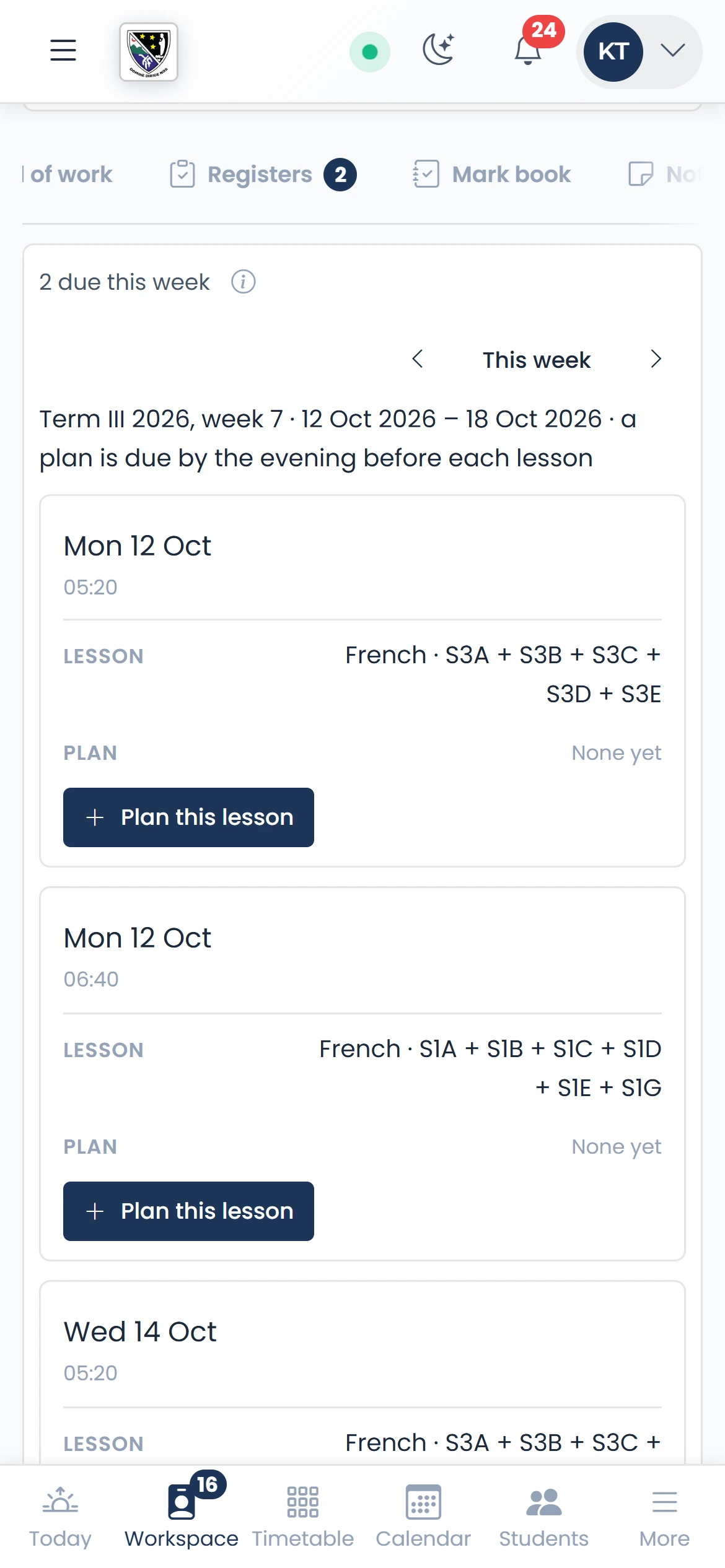
Step 10 of 13
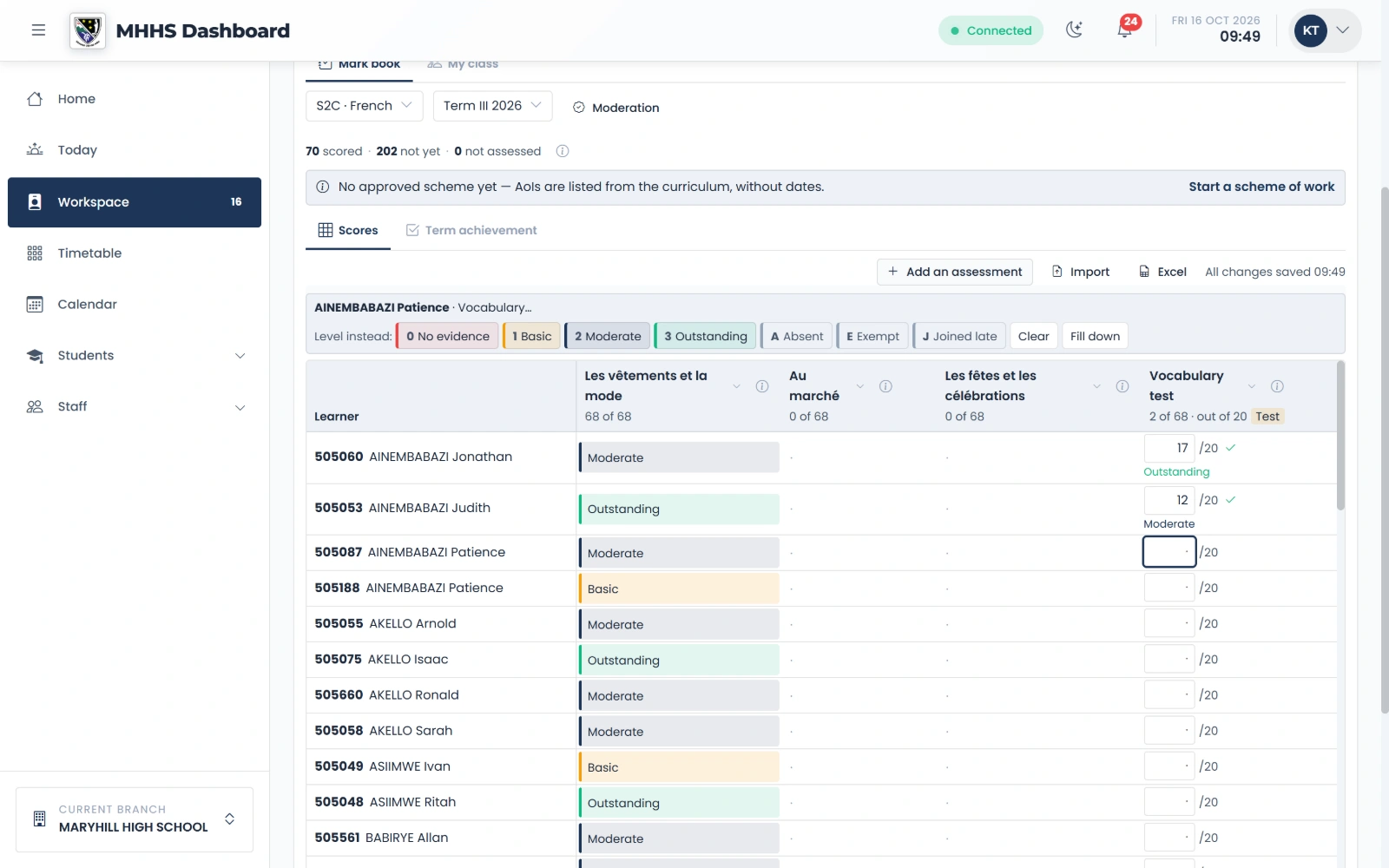
Type the mark in the cell
Type 17 and press Enter: it shows “/20” and the level it gives, and moves down to the next student.
qmgr.cashbook.ug/portal?tab=teaching&teach=markbook
Step 11 of 13
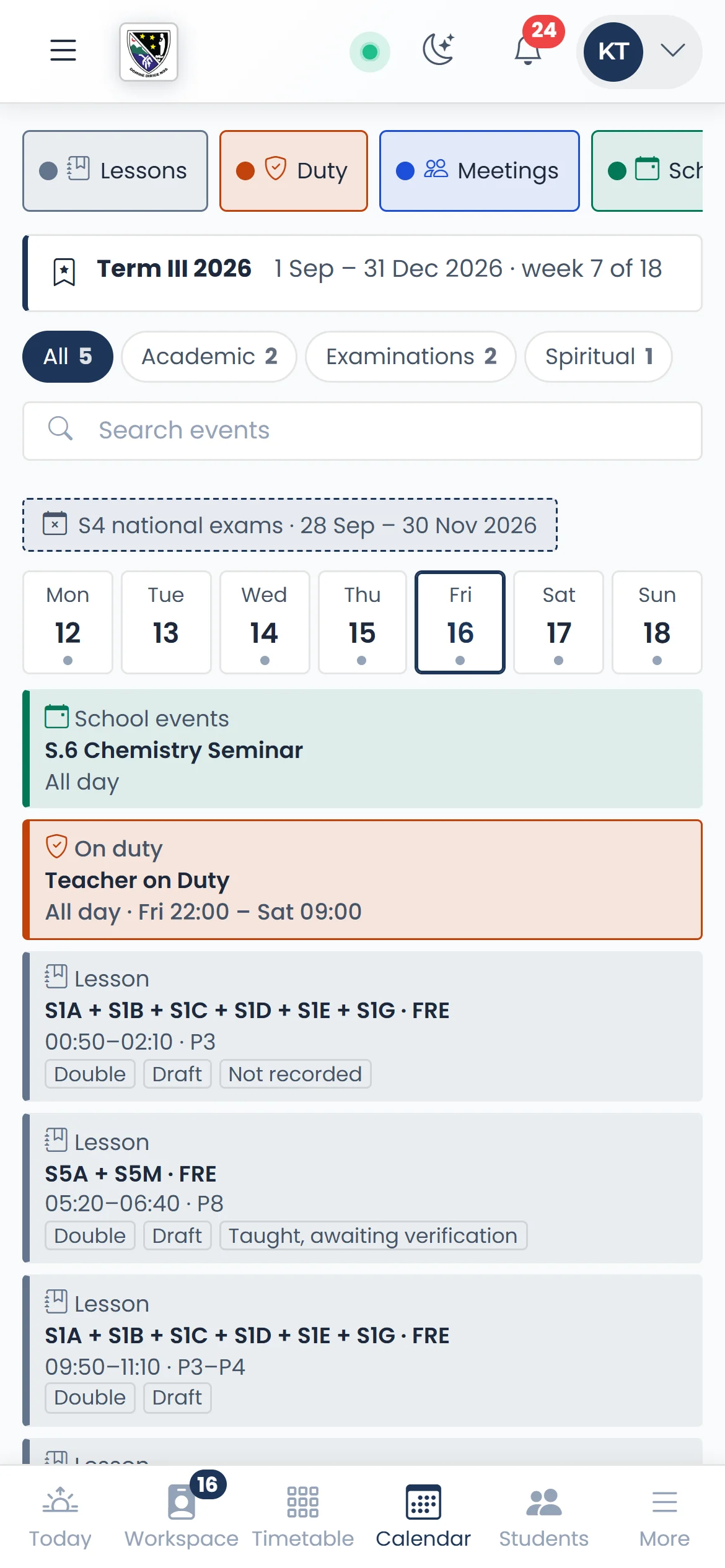
My calendar
Your lessons, duties, invigilation and meetings in one week, each in its own colour.
qmgr.cashbook.ug/calendar
Step 12 of 13
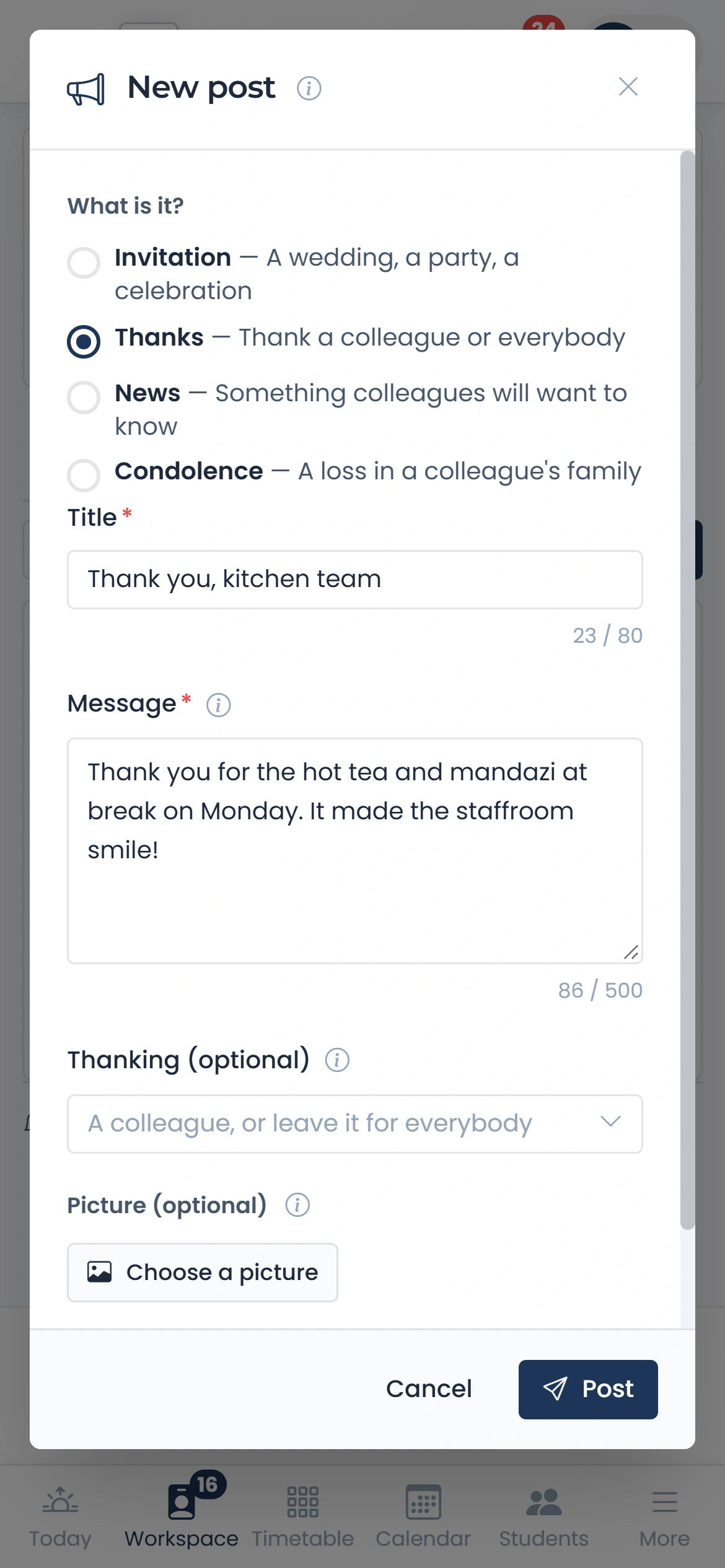
A thank-you, news, an invitation
Choose what it is, a title and a few plain words.
qmgr.cashbook.ug/portal?tab=wall
Step 13 of 13
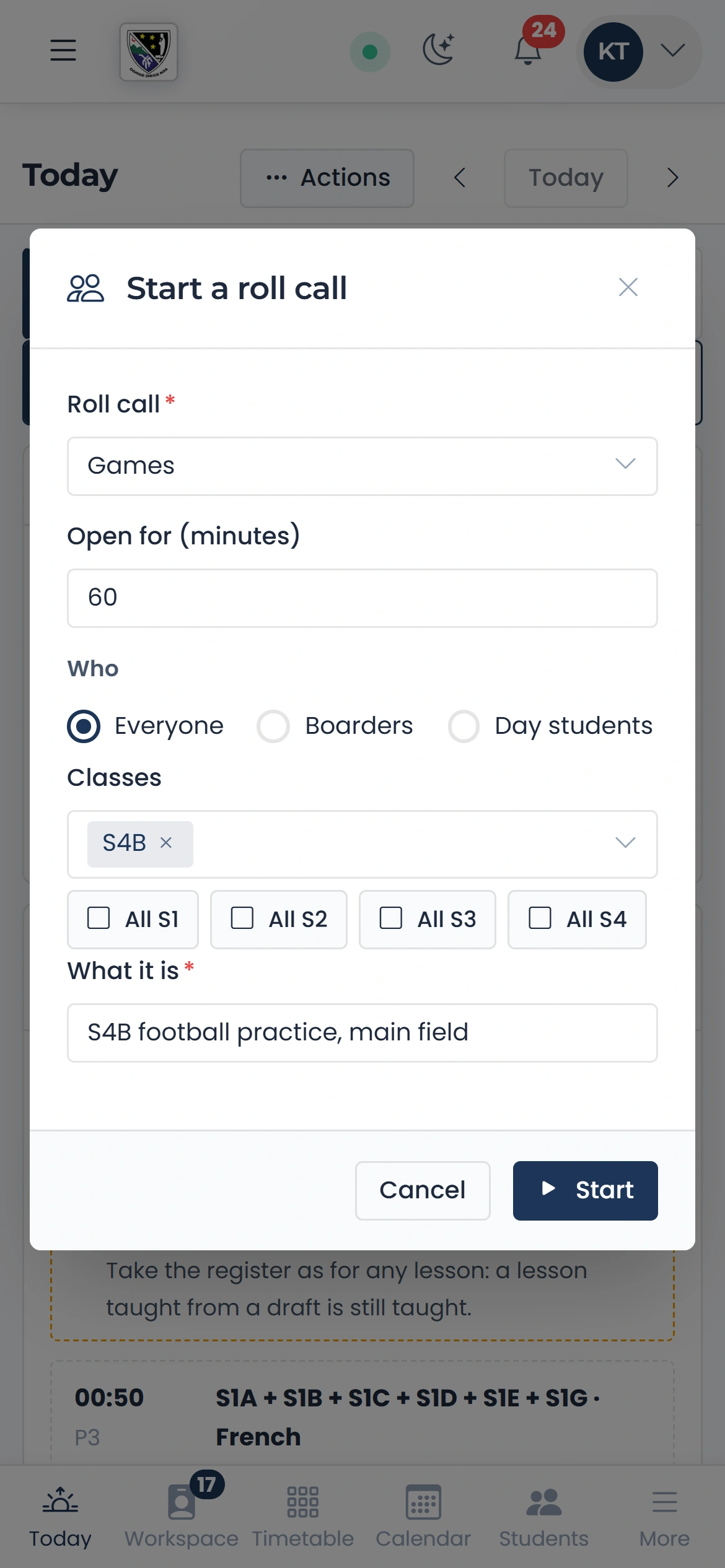
Start a roll call: who and what
Choose the roll call and who it is for: classes, or All S4 for a whole form.
qmgr.cashbook.ug/my-day
See it with your own school
Start a free trialBook a demonstration on WhatsApp
Or call +256 753 404 044